
A tour of your dashboard
Once you’re signed in as a tradesperson, BizzyDay opens on your dashboard — your home base for everything. This page is a map of what’s where.
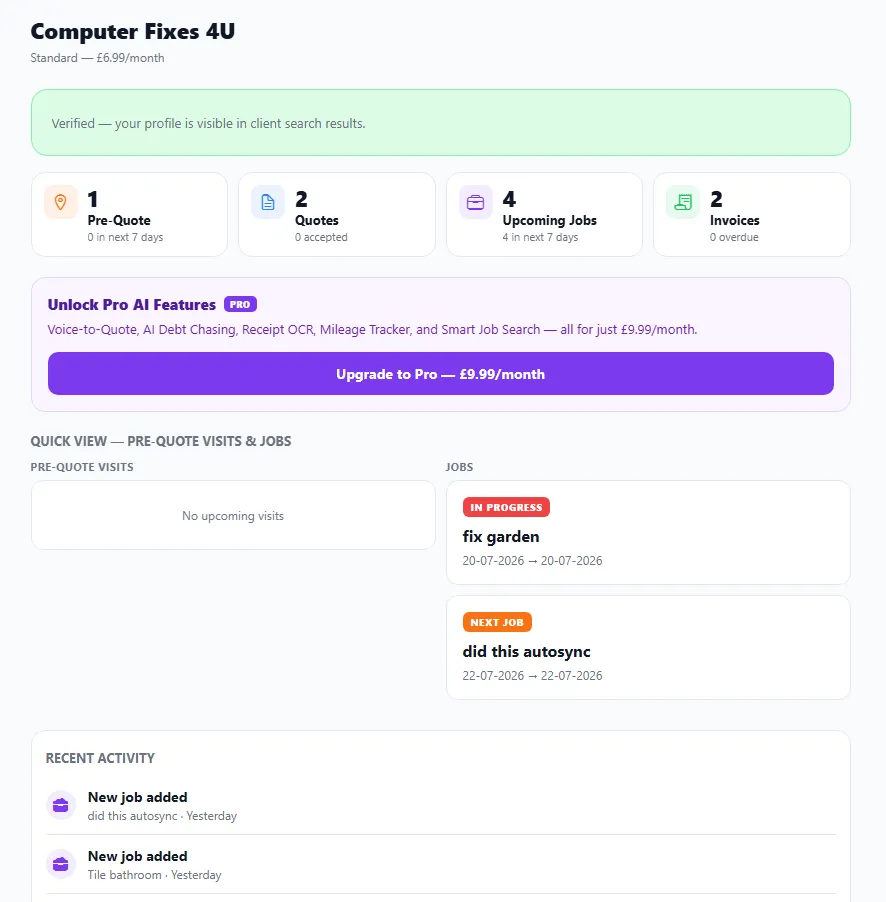
The Overview screen
Section titled “The Overview screen”Overview is your starting point. It shows a snapshot of your business — what’s coming up, what needs attention, and quick links into your most-used tools. If you’re on Pro AI, the AI tools are surfaced here too.
How navigation adapts to your device
Section titled “How navigation adapts to your device”BizzyDay is one app across phone, tablet and web, and the navigation changes to suit the screen:
- On a phone — a bottom tab bar with Home plus three slots you choose, and a More button that opens everything else.
- On a tablet — a slim icon sidebar down the side.
- On the web / desktop — a full sidebar with labels.
Because a phone only has room for a few tabs, you decide which four features live on your bottom bar. See Customising your nav bar.
The main areas
Section titled “The main areas”Everything in BizzyDay falls into a few groups — the same groups you’ll see in this help centre’s sidebar:
| Area | What it’s for | Guides |
|---|---|---|
| Profile & setup | Your public profile, subscription and settings | Profile & setup |
| Scheduling | Calendar, holidays, calendar sync, pre-quote visits | Availability & scheduling |
| Jobs | Managing jobs, spotting clashes, planning routes | Jobs |
| Quotes & invoices | Sending quotes, invoicing, getting signatures | Quotes & invoices |
| Money & admin | Finances, receipts, mileage, chasing payments | Money & admin |
| Growth | Getting featured and making the most of reviews | Growing your business |
Finding your way back
Section titled “Finding your way back”Wherever you are in the app, you can always return to Overview from the Home tab (phone) or the top of the sidebar (tablet/web). Settings and your subscription are reachable from the More menu or the bottom of the sidebar.