
Managing jobs
A job in BizzyDay is a piece of confirmed work. Tracking jobs keeps your schedule, your money and your paperwork joined up — a job on your calendar becomes an invoice becomes a payment, without you re-typing anything.
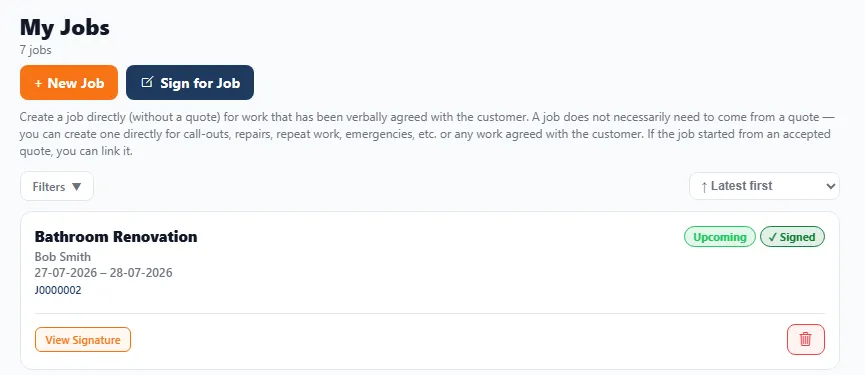
What a job holds
Section titled “What a job holds”- The customer and address.
- When it’s happening (which blocks out your calendar).
- What the work is and what you’re charging.
- Its own J-prefixed reference number and status badges (e.g. Upcoming, Signed).
Creating a job
Section titled “Creating a job”You don’t have to start from a quote. Use + New Job to create one directly for work that’s been verbally agreed — call-outs, repairs, repeat work, emergencies, or any job you’ve agreed with the customer.
- Tap + New Job.
- Enter the customer, address and dates.
- Add the work and price — or link it to an accepted quote if it came from one.
- Save — it appears on your calendar and marks that time as busy.
Getting a job signed
Section titled “Getting a job signed”Use Sign for Job to capture the customer’s signature — confirming the work or signing off completion. Signed jobs show a Signed badge, and you can reopen the signature any time with View Signature.
From quote to job to invoice
Section titled “From quote to job to invoice”BizzyDay is designed so work flows through it:
- You send a quote.
- The customer accepts (and maybe signs).
- It becomes a job on your calendar.
- When it’s done, you raise an invoice.
- The payment shows up in your finances.
Because each step carries the details forward, you’re not re-entering the same information four times.
Staying on top of the schedule
Section titled “Staying on top of the schedule”- Jobs automatically mark your calendar busy, so your public availability stays accurate.
- If a new job would clash with an existing one, BizzyDay warns you — see Conflict detection.
- Planning several jobs in a day? Let the route optimiser order them sensibly.