
Set your availability calendar
Your calendar — My Availability — is the heart of BizzyDay. It’s both your personal schedule and the live availability customers see when they search. Keeping it accurate is the single most important habit for winning work.
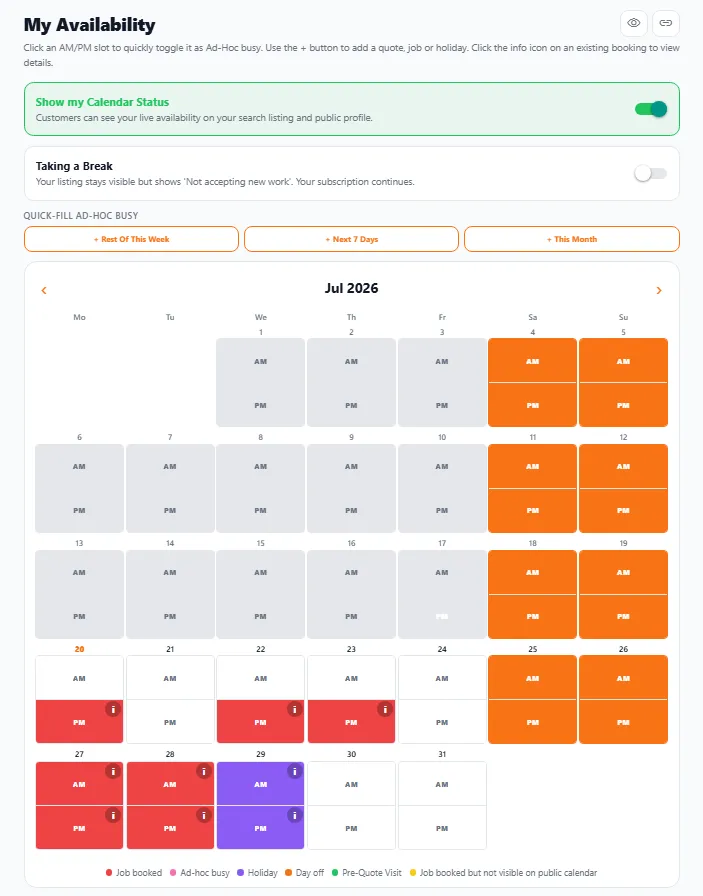
What the colours mean
Section titled “What the colours mean”On your own calendar, each AM and PM slot is colour-coded so you can see your week at a glance. This is more detailed than what customers see — to them it’s simply free or busy (see Understanding availability).
- Available — an empty slot, free to book.
- Job booked — a confirmed job.
- Ad-hoc busy — a slot you’ve quickly blocked out yourself.
- Holiday — time off / annual leave.
- Day off — a day you don’t normally work (e.g. weekends).
- Pre-Quote Visit — a booked site visit.
- Job booked, hidden from public — busy to you, but not shown on your public calendar.
AM/PM half-day precision
Section titled “AM/PM half-day precision”You don’t have to block out a whole day. Each day has a separate morning (AM) and afternoon (PM) slot — so you can be free in the morning and busy in the afternoon. This helps customers with smaller jobs find a slot that works, and stops you turning away half-days you could take.
Setting your availability
Section titled “Setting your availability”- Click an AM or PM slot to quickly toggle it as ad-hoc busy (and click again to free it up).
- Use the + button to add a quote, job or holiday to a day.
- Click the info (ⓘ) icon on an existing booking to view its details.
Your public profile updates automatically as you go.
Quick ways to mark yourself busy
Section titled “Quick ways to mark yourself busy”When you know you’ll be tied up, use the quick-fill buttons to block out ad-hoc busy time in one tap:
- Rest of this week
- Next 7 days
- This month
Showing your availability
Section titled “Showing your availability”Two toggles at the top control how you appear to customers:
- Show my Calendar Status — when on, customers can see your live availability on your search listing and public profile. Turn it off to keep your day-by-day availability private (you’ll still appear in searches).
- Taking a Break — your listing stays visible but shows “Not accepting new work”, and your subscription simply continues. Ideal for a holiday or a busy spell when you don’t want new enquiries.
Jobs on your calendar
Section titled “Jobs on your calendar”When you schedule a job, it shows on your calendar and marks that time as busy — so your availability and your workload always stay in step. If two jobs would overlap, BizzyDay warns you; see Conflict detection.
Keeping it accurate
Section titled “Keeping it accurate”- Update it as bookings come in. The moment you take a job, mark the time busy.
- Set your regular days off (e.g. weekends) so they’re always reflected.
- Add holidays in advance so customers don’t request dates you’re away — see Holidays & non-working days.
- Sync your other calendars so you’re not double-entering — see Syncing external calendars.