
How to create and send quotes
A quote tells a customer what a job will cost before it starts. A clear, professional quote wins work and prevents disputes — everyone knows what’s agreed. BizzyDay makes quoting fast, and turns an accepted quote straight into a job and later an invoice.
Why quote properly
Section titled “Why quote properly”- Win the job. A prompt, tidy quote beats a scribble on the back of an envelope.
- Avoid disputes. Agree the scope and price up front and there are no arguments later.
- Look established. A branded, itemised quote says you’re a serious business.
What a good quote includes
Section titled “What a good quote includes”- Your business details and the customer’s details.
- A clear, itemised breakdown of the work (labour, materials, etc.).
- The price per item and the total (with VAT if you’re registered).
- What’s included and excluded, so expectations are clear.
- How long the quote is valid for.
Creating a quote
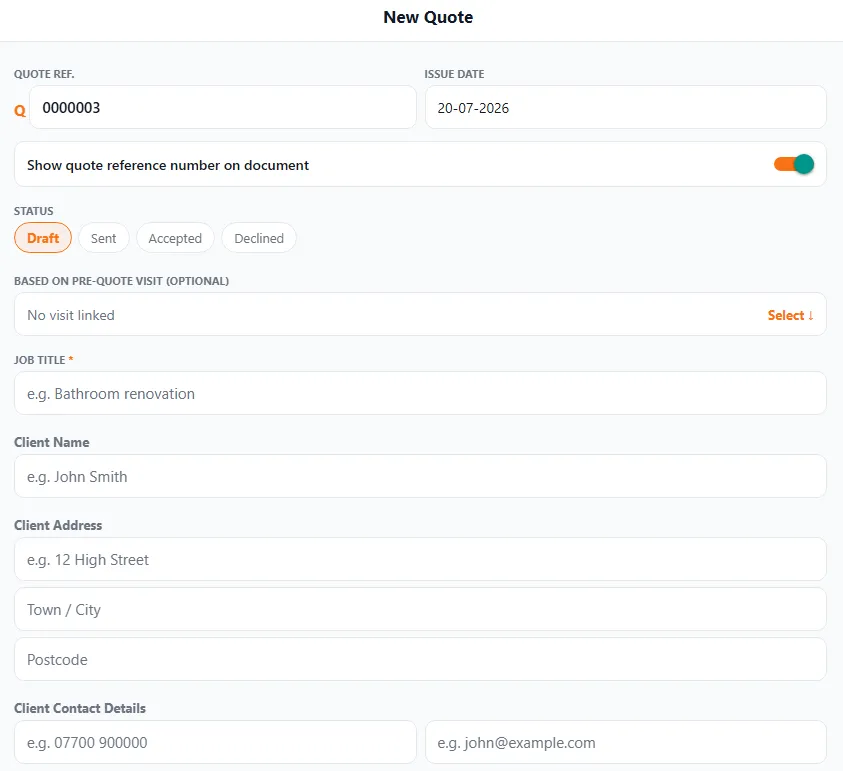
Section titled “Creating a quote”- Open Quotes and start a new one — or create it from a pre-quote visit.
- Add the customer and address.
- Add line items — description, quantity, price.
- Confirm VAT and the total.
- Save and send it as a PDF by message or email.
Tracking a quote’s status
Section titled “Tracking a quote’s status”Each quote carries a status so you always know where it stands: Draft while you’re preparing it, Sent once it’s with the customer, then Accepted or Declined. You can also base a quote on a pre-quote visit so the two stay linked.
Getting a quote accepted
Section titled “Getting a quote accepted”Send the quote as a PDF, or ask the customer to sign to accept it — a signed quote is a clear record that they agreed the scope and price.
From quote to job to invoice
Section titled “From quote to job to invoice”Once accepted, a quote flows straight through BizzyDay:
The details carry forward at each step, so you’re never re-typing the same job three times.